How to Submit VAT Returns Digitally Using Sage Accounting — Step by Step
A practical step-by-step tutorial for submitting VAT returns to HMRC through Sage Accounting. Covers the prerequisites (VAT registration, MTD sign-up, HMRC authorisation), setting up your VAT scheme (Standard, Flat Rate or Cash), recording VAT on transactions, reviewing the return box by box, and hitting submit. Also covers common errors and how to fix them, Sage Copilot's AI-powered anomaly detection for spotting VAT mistakes before you file, and what to do if HMRC rejects your submission.
Ledger Businesses is reader-supported. When you buy through links on our site, we may earn an affiliate commission at no extra cost to you. Learn more.
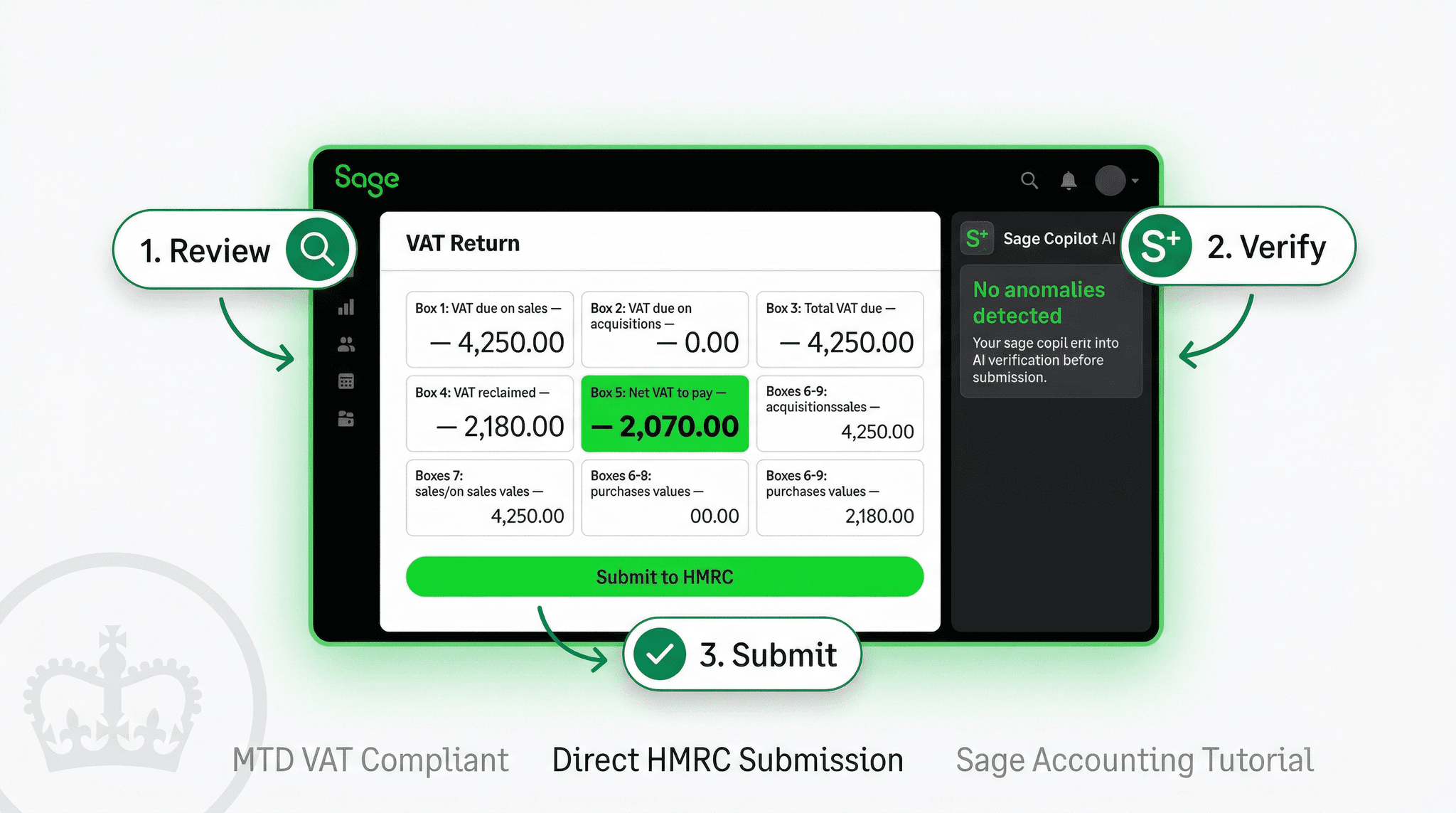
Making Tax Digital for VAT has been mandatory for all VAT-registered UK businesses since April 2022. That means every VAT-registered business — regardless of turnover — must keep digital VAT records and submit VAT returns using HMRC-compatible software. Paper returns and manual online submissions through the old HMRC portal are no longer accepted.
Sage Accounting is one of the most widely used MTD-compatible platforms in the UK, and its VAT submission workflow is designed to be as straightforward as possible for business owners who are not tax professionals. This guide walks through the entire process from initial setup through to submission, box by box, step by step — including how Sage Copilot AI can help catch errors before they become problems.
A VAT registration number, Government Gateway credentials with VAT permissions, an active Sage Accounting subscription (Start, Standard, or Plus), and — if you haven't already — registration for MTD for VAT through HMRC's online account. This guide assumes you are setting up for the first time or need a refresher on the end-to-end process.
Prerequisites: Before You Set Up VAT in Sage
Before configuring VAT in Sage Accounting, confirm you have the following in place.
1. VAT Registration
You must be registered for VAT with HMRC and have a VAT registration number. You register for VAT when your taxable turnover exceeds the VAT threshold (£90,000 for the 2025/26 tax year) or when you choose to register voluntarily. HMRC issues your VAT registration certificate (VAT 4) within approximately 30 days of a complete registration application, though it can take longer during peak periods.
2. MTD for VAT Sign-Up
MTD for VAT is not automatic — you must actively sign up. If you have not yet signed up for MTD for VAT with HMRC, do this before configuring Sage:
- Sign in to your HMRC online account (Government Gateway)
- Navigate to your VAT section and look for the MTD for VAT sign-up option
- Follow the HMRC sign-up process — it typically takes 72 hours for HMRC to activate your MTD account
- Once activated, you will no longer be able to submit VAT returns through the old HMRC online portal — all submissions must go through compatible software
If your business was already submitting VAT through compatible software before April 2022, your agent or software provider may have signed you up automatically. Check your HMRC account to confirm your MTD status before proceeding.
3. Government Gateway User ID and Password
You will need your Government Gateway User ID (a 12-digit number) and password. These are used to connect Sage Accounting to HMRC's MTD APIs. Keep these credentials secure — they provide access to your HMRC online account and should not be shared. If you have lost your Government Gateway credentials, you can recover them through HMRC's online account recovery process.
Step-by-Step: Setting Up VAT in Sage Accounting
Log in to your Sage Accounting account. From the main navigation, go to Settings (the cog icon in the top right or bottom left, depending on your screen layout). From the Settings menu, select Business Settings, then scroll to the VAT Settings section. If VAT has not been set up before, you will see a prompt to configure your VAT details.
Alternatively, navigate directly to Taxes in the main menu and select VAT Returns. If VAT is not yet configured, Sage will guide you through the initial setup wizard.
Enter your VAT registration number — this is the 9-digit number on your VAT registration certificate, formatted as GB followed by 9 digits (e.g. GB123456789). Sage will display this on your VAT returns and use it when communicating with HMRC.
Select your VAT filing frequency — most businesses file quarterly, but some file monthly (useful if you regularly receive VAT refunds) or annually (available to businesses with turnover below £1.35 million that are already on the Annual Accounting Scheme). Confirm the frequency that HMRC has assigned to your registration.
Set your VAT periods — HMRC assigns businesses to one of three quarterly stagger groups (Group 1: March/June/September/December, Group 2: April/July/October/January, Group 3: May/August/November/February). Check your VAT registration certificate or HMRC online account to confirm which group you are in, and enter this in Sage to ensure returns are calculated for the correct periods.
Sage Accounting supports three main VAT accounting schemes used by UK businesses. Select the one that matches your VAT registration:
Standard VAT Accounting (Accrual Basis): The default scheme. VAT is recorded and reported based on invoice date — you account for VAT when you raise a sales invoice or receive a purchase invoice, regardless of when payment is made. This is the most common scheme for VAT-registered businesses with turnover above approximately £1.35 million.
Cash Accounting: VAT is recorded and reported based on payment date — you account for VAT when you receive payment from customers (for sales VAT) or when you make payment to suppliers (for purchase VAT). Available to businesses with estimated VAT taxable turnover up to £1.35 million. Beneficial for businesses that invoice customers with payment terms and want to avoid paying output VAT before receiving payment.
Flat Rate Scheme (FRS): A simplified scheme where you pay a flat percentage of your gross turnover to HMRC rather than calculating VAT on individual transactions. Available to businesses with taxable turnover up to £150,000. If you are on the Flat Rate Scheme, you must also enter your FRS percentage (the sector-specific rate HMRC assigned when you joined the scheme) and your FRS start date.
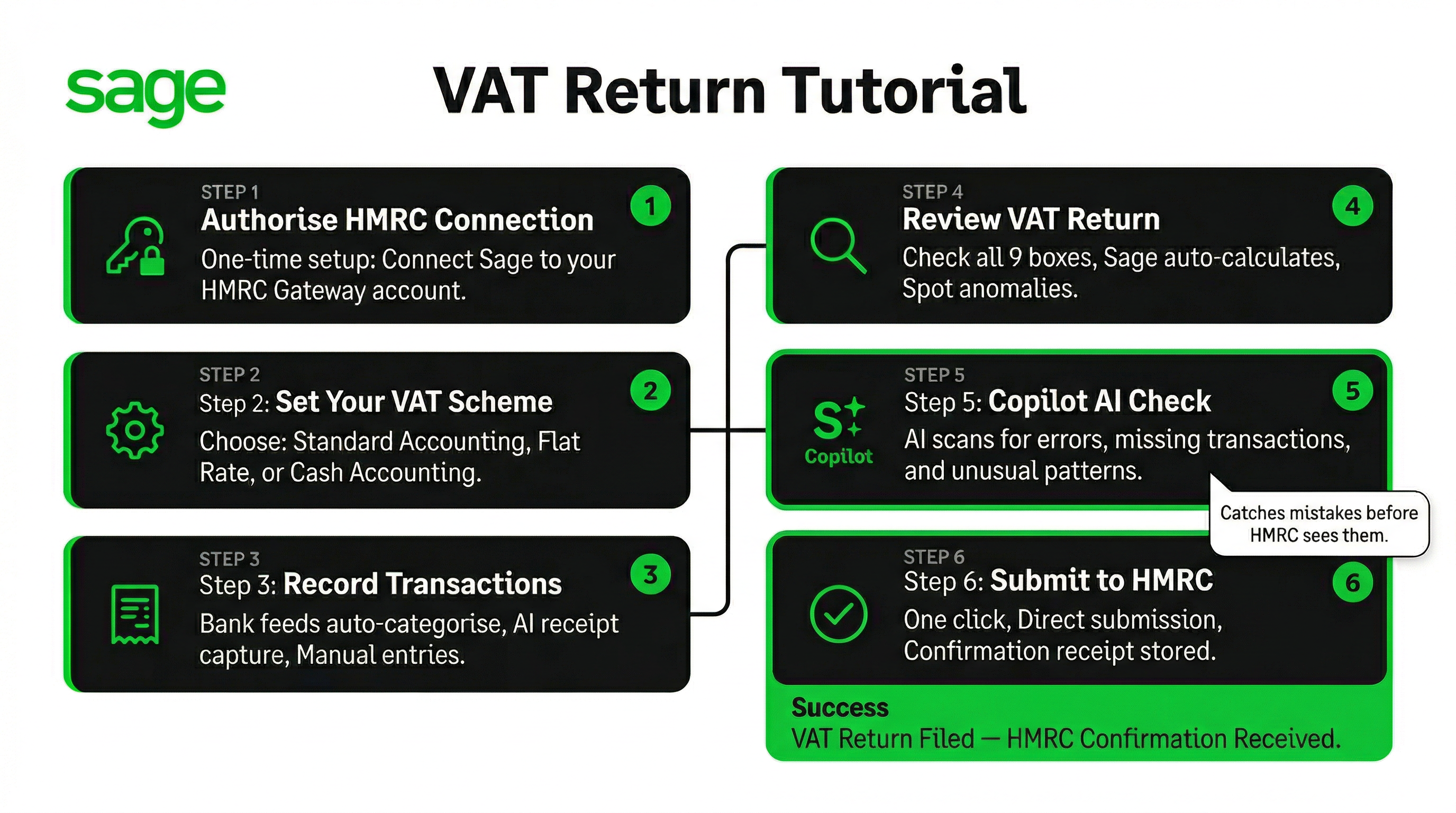
This is the most important setup step — authorising Sage Accounting to communicate with HMRC on your behalf via the MTD API.
In Sage Accounting, navigate to Taxes > VAT Returns. You will see an option to Connect to HMRC or Authorise with HMRC. Click this option. Sage will open a secure HMRC authentication window (hosted on HMRC's servers, not Sage's). Enter your Government Gateway User ID and password, then review and confirm the permissions Sage is requesting.
The permissions Sage requests are specifically for VAT data only — to view your VAT return obligations and to submit VAT returns on your behalf. Sage cannot access other parts of your HMRC account or make payments. Once authorised, HMRC issues a token to Sage that remains valid for 18 months, after which you will need to re-authorise.
After successful authorisation, Sage will pull your VAT return obligations from HMRC — you will see the open VAT periods for which returns are due listed in Sage Accounting's VAT returns section. If your obligations do not appear, check that your MTD for VAT sign-up is complete and wait 72 hours, then try re-authorising.
Recording VAT on Your Transactions
With VAT configured, Sage Accounting automatically calculates VAT on transactions as you record them — provided you select the correct VAT rate for each transaction.
VAT Rates in Sage Accounting
Sage Accounting includes all standard UK VAT rates pre-configured:
| VAT Rate | Rate | Common Uses |
|---|---|---|
| Standard Rate | 20% | Most goods and services sold in the UK |
| Reduced Rate | 5% | Energy for homes, children's car seats, certain renovations |
| Zero Rate | 0% | Food (most), children's clothing, books, public transport |
| Exempt | N/A | Insurance, finance, education, health services, postage stamps |
| Outside the Scope | N/A | Wages, government grants, services outside UK VAT scope |
| Reverse Charge | 20% (recorded) | Purchases from non-UK suppliers, Construction Industry Scheme |
When recording a sales invoice, purchase invoice, expense, or bank transaction in Sage Accounting, you select the appropriate VAT rate from a dropdown. Sage calculates the VAT amount automatically and posts it to the correct VAT account. Common mistakes at this stage include applying the wrong rate (20% to zero-rated goods, or Exempt to goods that should be Zero-rated — these are different and have different implications for your VAT return), and forgetting to apply the reverse charge to applicable purchases from overseas suppliers.
Bank Feed Automation and VAT
Sage Accounting's bank feed automation imports transactions from your bank account automatically. Sage's AI applies suggested VAT rates and categories based on the payee and transaction description, learning from your previous coding decisions. However, auto-suggested VAT rates are not always correct — always review bank feed suggestions before confirming them, particularly for unusual suppliers or mixed-rate transactions. The AI is most reliable for recurring transactions with consistent payees (regular supplier payments, subscription services) and less reliable for one-off or unusual purchases.
Receipt Capture and VAT
Sage Accounting's receipt capture feature (available on Standard and Plus plans) uses AI to extract VAT information from photographed receipts — reading the total amount, VAT amount, supplier name, and date, then pre-populating an expense transaction. For paper receipts from UK VAT-registered suppliers, this can significantly reduce manual data entry. Always review extracted amounts for accuracy, particularly when VAT rates are mixed (a receipt that includes both standard-rated and zero-rated items).
Reviewing Your VAT Return: Box by Box
When a VAT period is ready to close, navigate to Taxes > VAT Returns in Sage Accounting and select the relevant return period. Sage will calculate and display a draft VAT return based on the transactions recorded in that period. Before submitting, review each box carefully.
| Box | Label | What It Represents |
|---|---|---|
| Box 1 | VAT due on sales and other outputs | Output VAT charged on all standard and reduced rate sales during the period. This is what you have collected from customers on HMRC's behalf. |
| Box 2 | VAT due on acquisitions from EU member states | VAT on goods acquired from EU member states subject to acquisition tax — for most businesses post-Brexit this is £0, but businesses importing goods from the EU under specific arrangements may have entries here. |
| Box 3 | Total VAT due (Box 1 + Box 2) | Calculated automatically — the sum of Boxes 1 and 2. This is your total output VAT for the period. |
| Box 4 | VAT reclaimed on purchases | Input VAT you are reclaiming on business purchases and expenses — the VAT you paid to suppliers that you are entitled to recover. Ensure all eligible purchase invoices are recorded before closing the period. |
| Box 5 | Net VAT to pay or reclaim | Calculated automatically: Box 3 minus Box 4. If positive, you owe this amount to HMRC. If negative (Box 4 exceeds Box 3), HMRC owes you a refund. |
| Box 6 | Total value of sales and outputs (ex. VAT) | The net (ex-VAT) value of all sales — including standard-rated, reduced-rated, zero-rated, and exempt supplies. This should represent your total business turnover for the period, excluding VAT. |
| Box 7 | Total value of purchases and inputs (ex. VAT) | The net (ex-VAT) value of all purchases and expenses — including those on which VAT was reclaimed and those that are exempt or out of scope. Represents your total business expenditure for the period, excluding VAT. |
| Box 8 | Total value of supplies to EU countries (ex. VAT) | Net value of goods supplied to EU countries (not services). For most post-Brexit businesses with no EU goods exports, this is £0. |
| Box 9 | Total value of acquisitions from EU countries (ex. VAT) | Net value of goods acquired from EU countries. For most post-Brexit businesses, this is £0. |
What to Check Before Submitting
Before clicking submit, run through this checklist:
- All sales invoices for the period are raised and posted — no unprocessed invoices sitting in drafts
- All purchase invoices and expense receipts for the period are recorded — late additions after submission require an amendment process
- Bank reconciliation is complete for the period — all bank transactions are matched and coded
- Box 6 (total sales) looks reasonable compared to prior periods and your expected turnover
- Box 1 (output VAT) equates approximately to Box 6 × 20% (adjusted for zero-rated and reduced-rate sales)
- Box 4 (input VAT) is not unusually high or low — a sudden spike in reclaimed VAT may indicate an error
- Box 5 (net VAT due) looks reasonable — unexpected refund positions warrant a check
Submitting Your VAT Return to HMRC
Once you have reviewed all nine boxes and confirmed the figures look correct, you are ready to submit. In Sage Accounting's VAT Returns section, with the correct return period open, click Submit VAT Return.
Sage will display a confirmation screen showing the key figures — Box 5 (amount due or refund), the return period, and the due date. Review this summary one final time, then click Submit to send the return to HMRC via the MTD API.
HMRC processes the submission within seconds and returns a confirmation reference number. Sage Accounting stores this reference number and marks the VAT return as submitted. You should also receive a confirmation notification to the email address registered with your HMRC account.
The VAT payment due date is typically one calendar month and seven days after the end of your VAT period. For a VAT period ending 31 March, the payment and submission deadline is 7 May. Sage Accounting displays the due date prominently when you open the VAT return. Submission and payment deadlines are separate — you can submit the return before the deadline even if you need a few more days to arrange payment.
Submitting the VAT return through Sage does not automatically pay your VAT bill — these are two separate actions. To pay HMRC, use one of the approved payment methods:
Faster Payments (online banking): HMRC's bank details for VAT payments are Sort Code 08-32-00, Account Number 11963155, Account Name: HMRC VAT. Use your 9-digit VAT registration number as the payment reference. Faster Payments typically reach HMRC within hours but check your bank's limits for large payments.
Direct Debit: If you have set up a VAT Direct Debit with HMRC (available through your HMRC online account), HMRC will automatically collect the payment three working days after the submission deadline. This is the most reliable way to avoid late payment penalties — the direct debit collects automatically after you submit your return.
Corporate credit card: HMRC accepts corporate (not personal) credit cards for VAT payments, though a fee applies. BACS payment is also accepted but takes 3 working days, so allow sufficient lead time before the deadline.
Common VAT Return Errors and How to Fix Them
Even experienced bookkeepers make VAT errors. Here are the most common issues and how to resolve them.
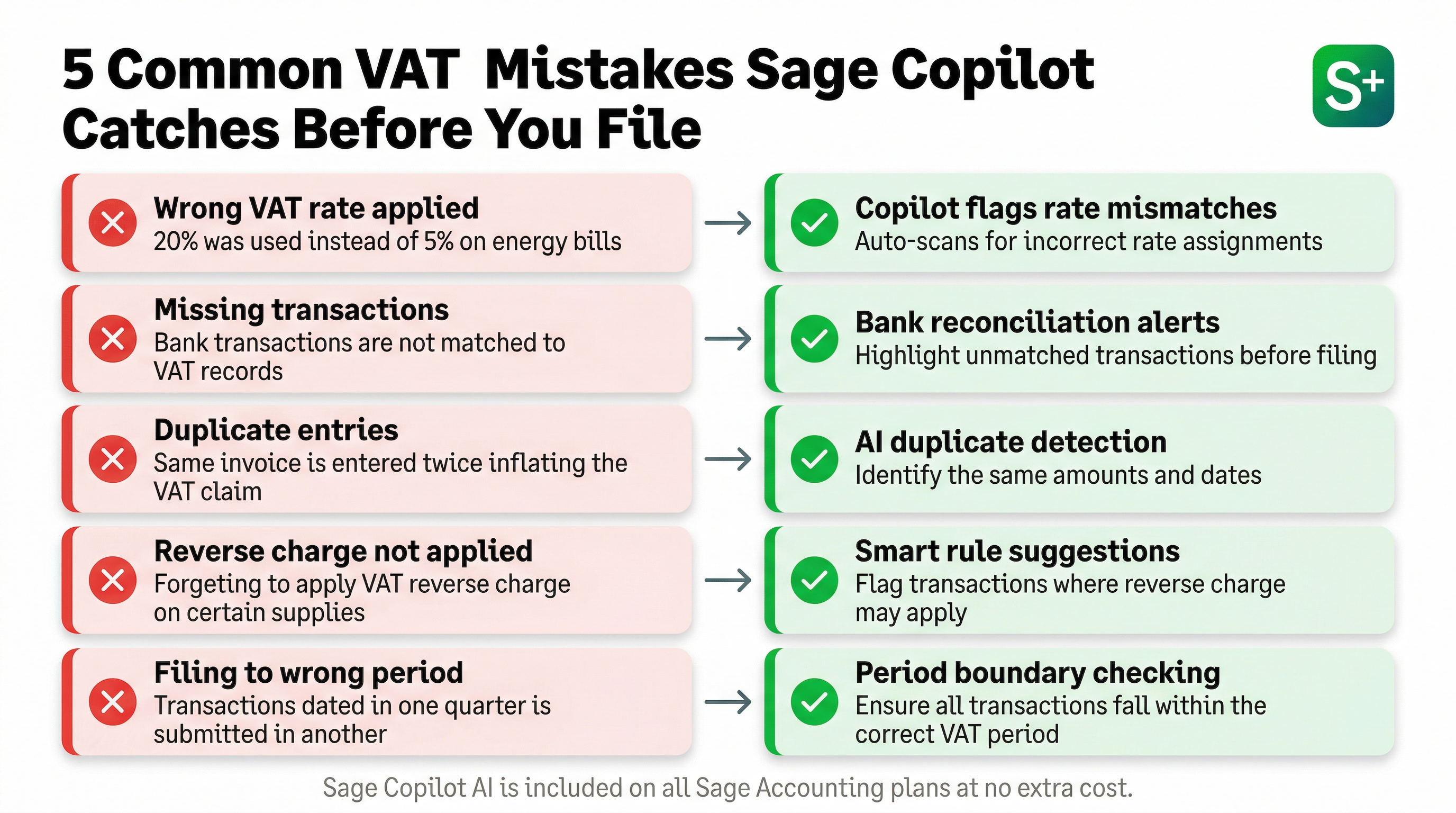
An invoice dated in March but posted after the March VAT return was submitted will appear in the next quarter's return. Sage Accounting posts transactions to the VAT period based on transaction date (for standard accounting) or payment date (for cash accounting). Always reconcile your bank and review unposted transactions before finalising a VAT period. If you discover a misposted transaction after submission, it can be adjusted in the next return — HMRC allows corrections up to £10,000 net VAT on a future return without requiring a formal amendment.
Applying 20% to zero-rated goods (such as most food or children's clothing) inflates Box 1 and overstates your VAT liability. Applying Exempt instead of Zero-rate to eligible goods affects your partial exemption calculations if you also have exempt supplies. In Sage Accounting, you can edit the VAT rate on an individual transaction and the VAT return calculation will update automatically — provided the return has not yet been submitted. After submission, corrections go into the next return.
If a supplier invoice is received after a VAT period closes but relates to that period, you cannot reclaim the input VAT until you record it — it will appear in the next VAT return. In Sage, this is fine — simply enter the invoice with the actual invoice date and it will appear in the correct VAT period if you are on standard accounting, or in the period when it was paid if you are on cash accounting. Ensure all supplier invoices are chased and recorded promptly to minimise VAT timing differences.
Only business expenses with valid VAT receipts from VAT-registered suppliers are eligible for input VAT recovery. Personal expenses run through the business, client entertaining (which is specifically disallowed for VAT reclaim purposes), and purchases from non-VAT-registered suppliers should not have VAT reclaimed. In Sage Accounting, use the "No VAT" or "Outside Scope" rate for personal expenses and ensure client entertainment is coded separately with the correct restriction applied.
The HMRC authorisation token issued when you connected Sage to HMRC expires after 18 months. If you attempt to submit a VAT return and receive an authorisation error, your token has likely expired. Navigate to the VAT Returns section and re-authorise Sage with HMRC using your Government Gateway credentials. The re-authorisation process takes a few minutes and the submission can then proceed normally.
If you are on the Flat Rate Scheme and Sage is calculating your Box 1 using the wrong FRS percentage, check the rate entered in your VAT settings and compare it to the rate on your FRS confirmation letter from HMRC. FRS rates changed for several sectors in recent years and some businesses are still using outdated rates. An incorrect FRS rate results in either overpayment or underpayment of VAT — HMRC can correct underpayments with interest and penalties.
Sage Copilot AI: VAT Anomaly Detection
Sage Copilot AI is included free on all Sage Accounting plans and includes specific functionality designed to catch VAT errors before they reach your return. The anomaly detection feature analyses your transactions as they are posted and flags patterns that may indicate errors — things that a human reviewing a bank statement might miss.
Specific VAT-related anomalies that Copilot detects include:
- Unusual VAT rates for a supplier: If you have previously always posted transactions from a specific supplier at 20% and a new transaction is posted at 0%, Copilot flags this as potentially incorrect and asks you to confirm
- High VAT reclaim versus prior periods: A spike in Box 4 that is significantly above your typical quarterly input VAT triggers a review prompt — useful for catching accidental double-posting of purchase invoices
- Transactions outside of VAT period without explanation: If transactions dated significantly before or after the VAT period appear, Copilot asks whether they are correctly dated
- Missing VAT on transactions where it is expected: If a transaction from a supplier who always charges VAT comes through without a VAT amount, Copilot flags it — useful for catching bank feed imports where the VAT categorisation was stripped
- Round-number VAT amounts that look manually entered: A flag for transactions where the VAT amount looks like a manual entry rather than a calculated figure
Copilot AI does not prevent you from submitting — it surfaces potential issues for your review. You can dismiss flags you have investigated and are confident are correct. The value is in catching the errors you would otherwise miss during a manual review, particularly when you are processing high transaction volumes under time pressure before a submission deadline.
Run the Copilot AI review on your draft VAT return at least two working days before the submission deadline. This gives you time to investigate flagged items, correct any errors, and recheck the return before submitting with confidence. Submitting then discovering an error requires an amendment process — far more time-consuming than catching it before submission.
Tips for Accurate, Efficient VAT Returns
Reconcile Monthly, Not Quarterly
The temptation with quarterly VAT returns is to do all your bookkeeping at quarter end. This creates a compressed, error-prone rush before the deadline. Reconciling your bank monthly — or even weekly for high-transaction businesses — means the work is spread throughout the quarter, each batch of transactions is smaller and easier to check, and errors are caught closer to when they were made (when your memory of the transaction is fresher).
Lock Periods After Submission
Sage Accounting allows you to lock accounting periods to prevent accidental changes to historical data. After submitting a VAT return, lock the corresponding accounting period. This prevents team members from accidentally posting transactions with historical dates into an already-submitted period, which would create discrepancies between submitted returns and your Sage records.
Keep Digital Copies of VAT Invoices
MTD for VAT requires digital record-keeping, which includes maintaining digital records of your VAT invoices. Using Sage's receipt capture feature to photograph and attach supplier invoices to their corresponding purchase transactions means your digital records are complete within the accounting system itself — no separate document management system required.
Set Up Payment Reminders
Late VAT payments attract interest charges and, for repeated late payments, surcharges. Set a calendar reminder for the payment deadline (one calendar month and seven days after the period end) alongside your submission deadline. Or set up a HMRC Direct Debit for VAT, which automates the payment collection after submission and removes the risk of forgetting.
Review Partial Exemption Annually
If your business makes both taxable and exempt supplies (for example, a business that sells products that are VAT-able and also provides financial advice that is exempt), you may be subject to partial exemption rules that limit the input VAT you can reclaim. Sage Accounting can be configured to handle partial exemption calculations, but this is a complex area — review your partial exemption position annually with an accountant if your business has mixed supplies.
Summary: Your VAT Return Checklist
Before the Period Closes
Complete these tasks at least one week before the submission deadline to avoid last-minute pressure.
- All sales invoices raised and posted for the period
- All purchase invoices received and recorded
- Bank feed reviewed and all transactions categorised and confirmed
- Bank reconciliation completed and balanced
- Copilot AI anomaly alerts reviewed and resolved
- Draft VAT return boxes reviewed for reasonableness
On Submission Day
The final steps before hitting submit.
- Open draft VAT return and review all nine boxes
- Confirm Box 5 (net VAT due) matches your expectation
- Check HMRC authorisation is still active (not expired)
- Click Submit and save the HMRC confirmation reference
- Arrange VAT payment if not using Direct Debit
- Lock the accounting period in Sage after submission
After Submission
Post-submission housekeeping to keep your records clean.
- File HMRC confirmation email or reference number securely
- Note the next VAT period start and end dates
- Review any transactions that arrived after the cut-off — ensure they are posted with correct dates for the new period
- Chase any outstanding supplier invoices for accurate recording in the new period
Getting Help from Sage
If you encounter issues during VAT setup or submission, Sage Accounting includes UK-based telephone support on all plans — one of its key differentiators versus some competitors. The Sage support team is familiar with UK VAT requirements and can guide you through connection issues, submission errors, and configuration questions. The Sage knowledge base also contains detailed, UK-specific guidance on VAT schemes, error codes, and common configuration scenarios.
For complex VAT questions — partial exemption, international VAT on digital services, the Construction Industry Scheme domestic reverse charge — a qualified VAT adviser or accountant is the appropriate resource. Sage's software handles the submission mechanics; professional advice ensures the underlying accounting treatment is correct.